By John Whitehead
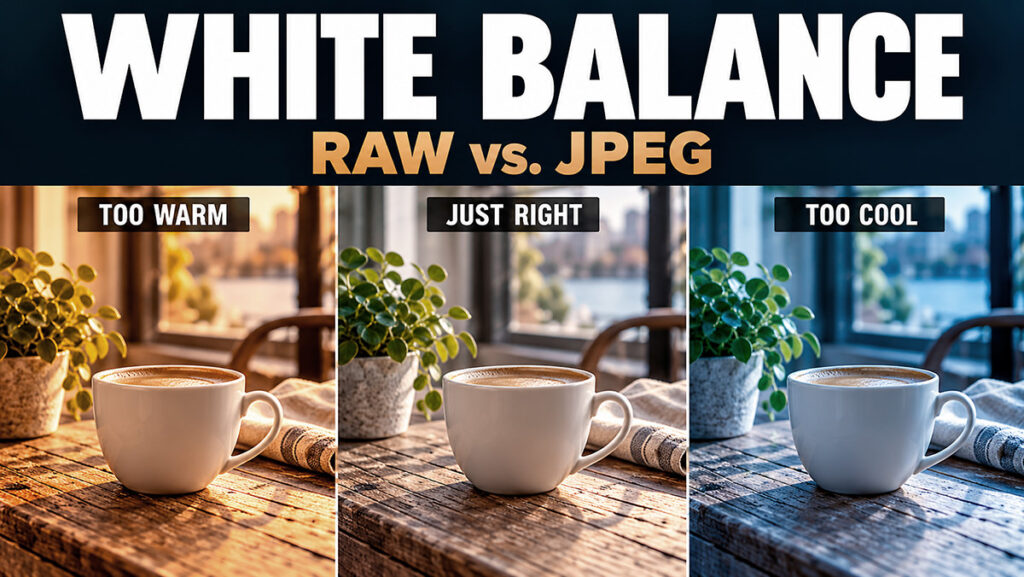
You photograph someone indoors, check the image, and discover their skin has the color of a cheese puff. Outside, the same person suddenly looks like they have been living in your freezer.
Welcome to white balance.
White balance is one of those camera settings that sounds more complicated than it needs to be. The basic idea is simple: different light sources have different colors, and your camera needs some guidance about how to interpret them.
Here is my approach: when shooting JPEG, get white balance right in the camera. When shooting RAW, I leave it on Auto and make my final decisions in Adobe Lightroom or Adobe Camera Raw.
That is not permission to ignore light. It is a decision about where I want to control color. I would rather make that decision on a large screen than while squinting at the back of my camera like I am trying to read the ingredients on a vitamin bottle.
What Does White Balance Actually Do?
White balance adjusts the image’s color balance to compensate for the color of the light. When a neutral appearance is the goal, a white or gray object should look neutral instead of orange, blue, green, or magenta.
Your eyes and brain constantly adapt to different lighting. A white shirt often still looks white to you under a warm household lamp. The camera records that warm light and needs a white-balance setting to compensate for it.
This affects the entire photograph—not just white objects. Skin, clothing, food, foliage, and everything else come along for the ride. Get it wrong, and your beautiful dinner can look like evidence. White balance and exposure are different. White balance addresses color casts. Exposure concerns how much light you capture. An image can have good exposure and bad white balance—or the reverse. Turning an orange photograph blue does not recover blown highlights.
Kelvin: A Temperature Scale Without a Weather Forecast
Photographers describe the color temperature of light in Kelvin, abbreviated K. Lower color temperatures generally describe warmer, more orange light. Higher temperatures describe cooler, bluer light.
Yes, a higher temperature means bluer light. Photography apparently felt shutter-speed fractions were not confusing enough.
Light Source | Approximate Color Temperature | Typical character |
|---|---|---|
Tungsten household lighting | 2,700–3,200 K | Warm, yellow-orange |
Direct daylight | 5,000–5,600 K | Relatively neutral |
Overcast daylight | 6,000–7,000 K | Cooler |
Open shade | 7,000–9,000 K or higher | Often noticeably blue |
These are starting points, not guaranteed readings. Time of day, weather, surroundings, and the actual light source all matter. LEDs and fluorescent lights also vary widely, and Kelvin alone does not describe their green or magenta casts.
Here is the important twist: the white-balance setting compensates for the light. For the same photograph, raising the Kelvin white-balance setting makes the rendered image warmer; lowering it makes the image cooler. A high setting tells the camera or software to compensate for blue light by adding warmth.
Shooting JPEG? Commit Carefully.
A JPEG is an image the camera has to process. White balance, contrast, sharpening, and other rendering choices have been applied before the file is saved.
Think of RAW as ingredients and JPEG as the finished meal. You can season the meal afterward. Removing the garlic is a more ambitious project.
This does not mean a JPEG cannot be corrected. Modest color casts are often manageable. However, a severe white-balance error can be much harder to repair cleanly because you are adjusting already-rendered pixels rather than reinterpreting the original RAW data.
Strong corrections can reveal noise, uneven color transitions, or poor skin tones. If a color channel has been clipped in the saved image, simply moving a slider cannot recreate its missing detail.
My advice is straightforward: if you want accurate color from JPEG, make white balance a capture-time priority. Auto may work perfectly well, but check its result. “Auto” is a useful assistant, not a sworn affidavit.
Exposure deserves the same care. JPEG offers less room for major tonal recovery than RAW, but neither format makes missing highlight detail magically reappear.
Why I Leave White Balance on Auto When Shooting RAW
With RAW, I do not spend my time dialing in white balance for every situation. I leave the camera on Auto White Balance and make the final adjustment during RAW conversion.
A conventional camera RAW file retains sensor data, while the camera’s white-balance choice is recorded as information the RAW converter can use for its initial rendering. It is not permanently baked into the image in the same way it is with a JPEG.
That gives me much more freedom to choose the color balance later. A warm or cool camera preview does not automatically mean the RAW capture is ruined.
I can concentrate on light, timing, expression, composition, focus, and exposure. There are already enough things to think about without holding a committee meeting over whether the scene needs 5,200 or 5,400 Kelvin.
I am not skipping white balance. I am choosing to set it during RAW processing.
There are still reasons to set a fixed white balance when shooting RAW. It makes previews more consistent, helps clients evaluate tethered images, and reduces distracting shifts between frames in steady light. For products, artwork, or other color-critical subjects, photographing a neutral target—and, when appropriate, a color reference chart—is useful even if the camera stays on Auto.
Those are workflow advantages. They do not mean you must choose a perfect in-camera white balance to obtain good color from a RAW file.
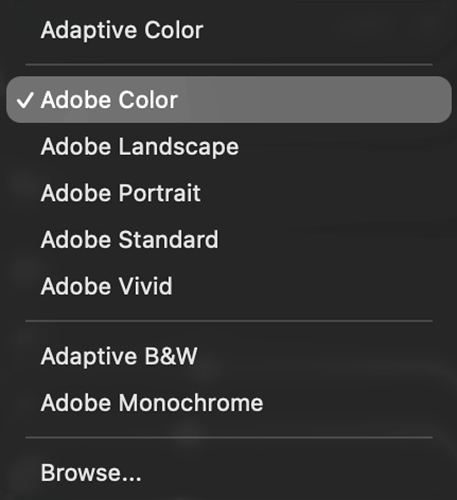
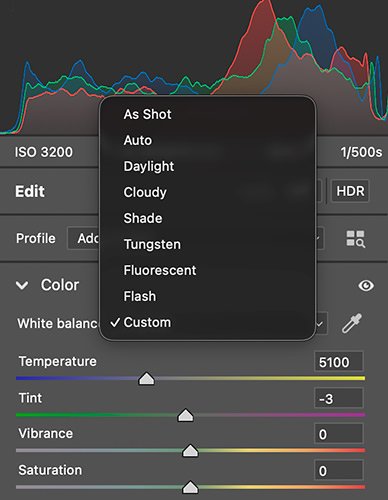
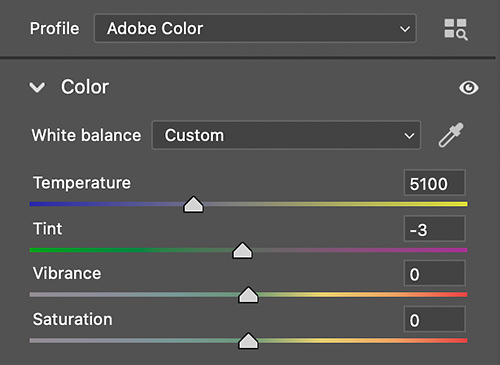
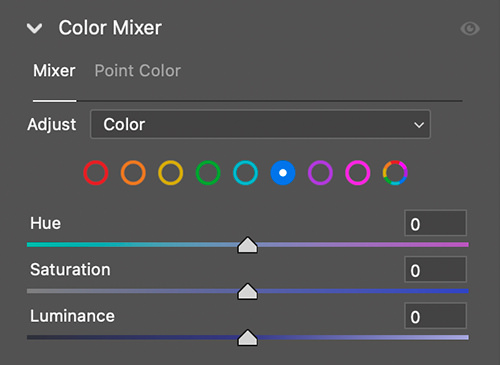
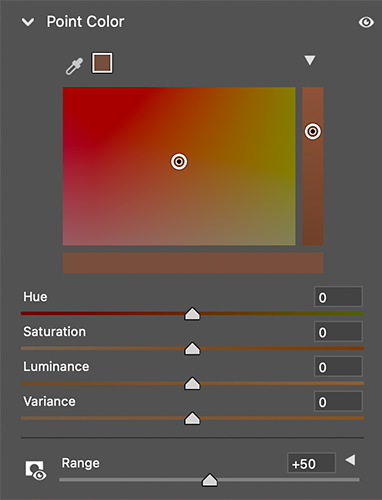
A white-balance reference gives you a neutral starting point. From there, a deliberate creative adjustment is entirely reasonable. Ideally, evaluate final color on a calibrated and profiled display under consistent viewing conditions.
Mixed Lighting: When One Slider Cannot Please Everyone
Picture a person next to a daylight window with a warm lamp lighting the other side of their face. Neutralize the lamp, and the window side may look blue. Neutralize the window, and the lamp side may look orange.
Your camera is not necessarily malfunctioning. Two light sources are arguing, and you have asked one setting to settle the dispute.
A single global white-balance adjustment cannot always neutralize different light sources across a scene. RAW gives you flexibility, but it does not turn mixed light into one uniform source.
Better options include turning off the conflicting lamp, moving the subject, using a dominant controlled light, or matching light sources with appropriate gels. Local editing can help when the differently lit areas can be separated, but preventing the problem is often easier than repairing it.
Also, some lights reproduce colors poorly. A white-balance adjustment can reduce a cast; it cannot fully restore color information the lighting never allowed you to capture.
Do Not Neutralize the Personality Out of the Photograph
A sunset is supposed to feel warm. Candlelight does not need to look like the lighting in a dental office. A cool blue-hour scene can look cool.
Accurate neutral color matters when you are reproducing artwork, photographing products, or documenting colors faithfully. In other situations, white balance is also an expressive choice.
The question is not always, “Is that white object perfectly white?” Sometimes the better question is, “Does this color communicate what the scene felt like?”
Make the warmth intentional. There is a difference between a golden portrait and a person who looks marinated.
RAW Gives You Flexibility, Not Superpowers
Leaving white balance on Auto does not remove your responsibility to expose carefully. RAW cannot guarantee recovery of clipped sensor data, erase all noise from severe underexposure, or make every difficult light source produce beautiful skin tones.
For JPEG, pay close attention to white balance before you press the shutter. For RAW, Auto White Balance is a practical starting point, and Lightroom or Camera Raw gives you substantial control over the final interpretation.
That is why I leave mine on Auto when shooting RAW. I want to spend my time making the photograph, then make thoughtful color decisions during processing.
Your camera can make the first guess. It does not need to have the last word.