
Videos are Designed to Watch in Order!






What is Adobe Lightroom Classic
What Is Adobe Lightroom Classic?
Adobe Lightroom Classic is a powerful photo-editing and management program. Amateur and professional photographers use it around the world.
Learning its features can improve your workflow and save valuable time. It can also help you organize your photographs and produce consistent results.
In this post, we will explore Adobe Lightroom Classic and its major features. We will also compare it with Adobe Lightroom, the cloud-based version.
A Brief Overview
Adobe Lightroom Classic forms part of Adobe’s Creative Cloud suite. Adobe created it for desktop photo editing and management.
The program combines powerful editing tools with an extensive organization system. Therefore, it works well for photographers who manage large image libraries.
Lightroom Classic stores your photographs on a computer or external drive. Unlike Adobe Lightroom, it does not require a cloud-based workflow. This local storage gives you greater control over your files and backups.
Key Features of Adobe Lightroom Classic
1. Organizing Your Photo Library
Lightroom Classic can manage thousands of photographs through a catalog system. The catalog records the location of each image file. It also stores keywords, ratings, metadata, and editing instructions.
However, Lightroom Classic does not place your original photographs inside the catalog. Instead, it links to files stored on your computer or external drive.
You can organize photographs into collections without moving the original files. You can also add keywords and search for images using metadata.
In addition, Lightroom Classic lets you rate, flag, and color-label photographs. These tools make it easier to review images after a large photo shoot.
Professional photographers often manage extensive image libraries. Therefore, Lightroom Classic’s organization tools can save them hours of work.
2. Non-Destructive Editing
Some editing programs permanently change the original image. Lightroom Classic uses a non-destructive editing process instead.
When you adjust exposure, crop an image, or change its colors, Lightroom records those instructions. It then displays a preview of the edited photograph. Your original image remains unchanged.
You can revise or remove any adjustment at any time. You can also return to the original version with one click.
As a result, you can experiment with different editing styles without damaging your photographs. This freedom makes non-destructive editing valuable for both beginners and professionals.
3. Advanced Editing Tools
Lightroom Classic includes many tools for improving photographs. These controls can correct technical problems and help you develop a consistent style.
Important editing tools include:
- Exposure and contrast: Improve brightness and tonal range.
- Highlights and shadows: Recover detail in bright and dark areas.
- Color correction: Adjust white balance and individual colors.
- Crop and straighten: Improve composition and correct tilted horizons.
- Sharpening and noise reduction: Improve detail and reduce digital noise.
- Linear and radial gradients: Apply adjustments to selected areas.
- Masking tools: Select people, skies, backgrounds, and objects.
Lightroom Classic also lets you synchronize adjustments across several photographs. Therefore, you do not need to edit every image from the beginning.
These tools can speed up your workflow while maintaining consistent results.
4. Batch Processing
Large groups of photographs often need similar adjustments. Lightroom Classic can apply the same settings to several images at once.
For example, you can edit one photograph from a portrait session. Then, you can synchronize those adjustments with the remaining images.
You can also create presets for adjustments that you use frequently. A preset applies a saved group of settings with one click.
Batch processing can save hours of repetitive work. It works especially well for weddings, events, portraits, and commercial assignments.
However, you should still review each photograph. Changes in lighting or exposure may require additional adjustments.
5. Photoshop Integration
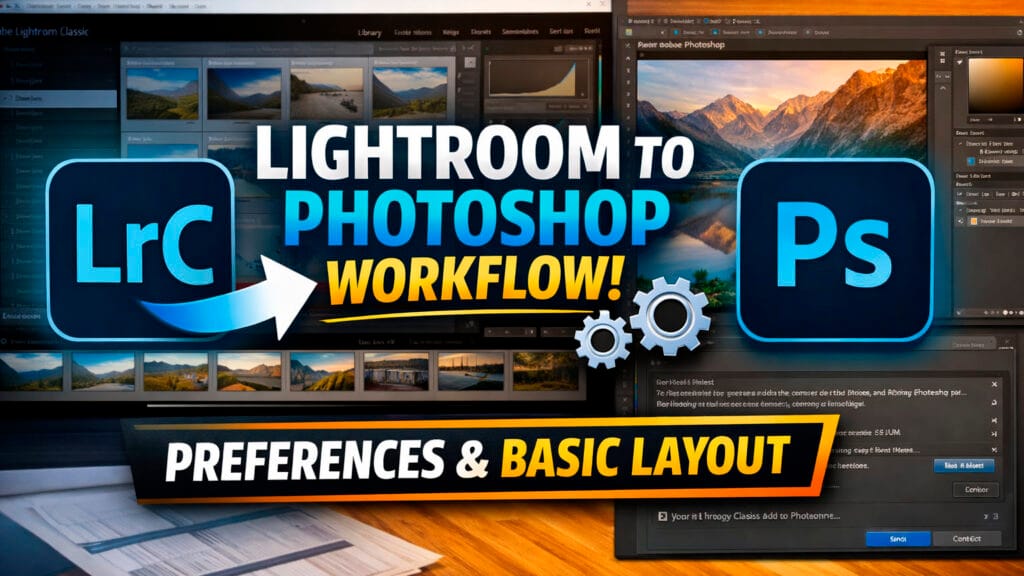
Lightroom Classic also works closely with Adobe Photoshop. Each program handles different parts of the editing process.
Lightroom Classic excels at image organization and general photo editing. Photoshop provides more control over detailed retouching, layers, selections, and composites.
You can send a photograph directly from Lightroom Classic to Photoshop. After you finish editing, save the file in Photoshop. The edited version will then appear in your Lightroom Classic catalog.
This workflow gives you the strengths of both programs. You can manage and color-correct images in Lightroom Classic. Then, you can use Photoshop for more complex work.
Lightroom Classic vs. Adobe Lightroom
Adobe offers two main versions of Lightroom. Although they share many editing tools, they support different workflows.
- Adobe Lightroom Classic supports a desktop-based workflow. It stores your photographs on local or external drives. It also offers extensive organization, metadata, printing, and exporting tools.
- Adobe Lightroom supports a cloud-based workflow. It stores your photographs in Adobe’s cloud and synchronizes them across devices. Therefore, you can edit images on a computer, tablet, or phone.
Lightroom Classic suits photographers who want control over their files and storage. It also works well for people who manage large image libraries.
Adobe Lightroom suits photographers who value mobility and automatic synchronization. It offers a simpler way to work across several devices.
Who Should Use Adobe Lightroom Classic?
Adobe Lightroom Classic works well for photographers who:
- Manage large numbers of images: Its catalog tools make extensive photo libraries easier to organize.
- Need advanced editing controls: The program offers precise tools for exposure, color, detail, and selective adjustments.
- Prefer a desktop workflow: Lightroom Classic provides greater control when you work mainly on a computer.
- Want local file storage: You choose where to store your photographs and backups.
- Need non-destructive editing: You can experiment without changing the original image.
- Edit groups of photographs: Batch processing can create consistent results and save time.
- Use Adobe Photoshop: Both programs work together through a smooth editing process.
Wedding, portrait, event, commercial, and fine-art photographers can all benefit from Lightroom Classic. Hobbyists can also use it to organize growing photo collections.
Conclusion
Adobe Lightroom Classic combines photo editing, image organization, and file management. Its catalog system can manage thousands of photographs while protecting the original files.
The program also offers advanced editing tools and efficient batch processing. In addition, its Photoshop integration supports more detailed retouching and creative work.
Beginners can use Lightroom Classic to build an organized photography workflow. Meanwhile, experienced photographers can use its advanced tools to save time and maintain consistency.
Ready to begin? You can get Lightroom Classic through Adobe’s Creative Cloud Photography plan. Start by learning its organization tools, and then explore its editing features.