Adobe Lightroom Classic Preferences and Workspace Layout
Adobe Lightroom Classic Preferences and Workspace Layout
Understanding Lightroom Classic preferences and the program’s basic workspace layout will help you organize, edit, and manage photographs more efficiently. Before importing and editing images, it is worth taking a few minutes to configure the program and become familiar with its most important tools and panels.
In this Adobe Lightroom Classic tutorial, you will learn how to adjust essential preferences, navigate the workspace, and customize the interface to match your photography workflow. This is an ideal starting point for beginning Lightroom Classic users or photographers who want a clearer understanding of how the program is organized.
Setting Up Lightroom Classic Preferences
Lightroom Classic preferences control how the program looks, performs, and interacts with photographs and external applications. Properly configuring these settings can improve performance, simplify your workflow, and help prevent avoidable problems.
The tutorial introduces important preference categories, including:
- General program behavior
- Preset visibility and management
- External editing options
- File handling and Camera Raw settings
- Interface appearance
- Performance and graphics processor settings
You will also learn the difference between Lightroom Classic preferences and catalog settings. Preferences apply to the program, while catalog settings control options associated with an individual Lightroom Classic catalog.
Understanding the Lightroom Classic Workspace
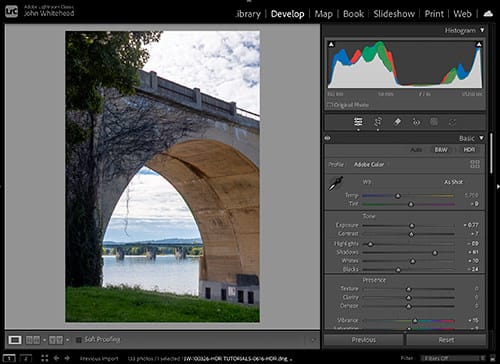
The Lightroom Classic workspace is divided into several clearly defined areas. Each section provides access to different tools for organizing, editing, and preparing photographs.
The main workspace includes:
- Module Picker: Move between Library, Develop, Map, Book, Slideshow, Print, and Web modules.
- Left Panel: Access folders, collections, presets, snapshots, history, and other navigation tools.
- Content Area: View, compare, organize, or edit the selected photograph.
- Right Panel: Find editing controls, metadata, keywording tools, and module-specific settings.
- Toolbar: Access viewing modes, ratings, color labels, and other frequently used commands.
- Filmstrip: Quickly move between photographs without leaving the current module.
The available panels and controls change according to the selected module. For example, the Library module contains tools for organizing and adding metadata, while the Develop module provides controls for correcting and enhancing photographs.
Customize Lightroom Classic for Your Workflow
Lightroom Classic allows you to show, hide, expand, and collapse interface panels. Customizing the workspace can provide more room for photographs and reduce distractions while you work.
Learning these basic interface controls will make later lessons easier to follow. Once you understand where the major tools are located, you can move confidently into importing photographs, organizing folders and collections, adding metadata, and editing images in the Develop module.