
Storage and Backup for Photographers
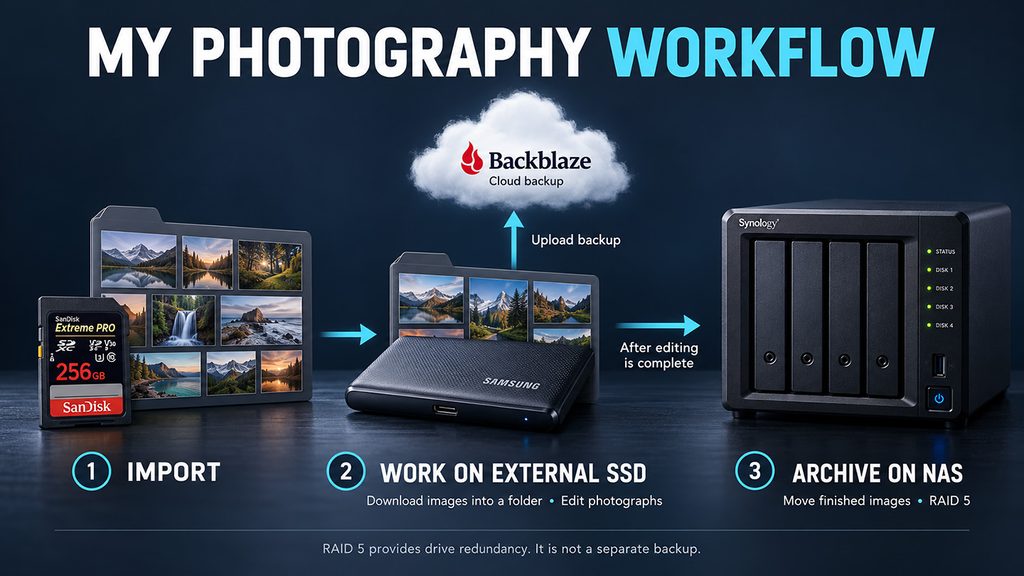
A photograph can take a fraction of a second to make and years to replace, if it can be replaced at all. Storage is part of the photographic process. It protects the originals, the editing decisions, and the work you have promised a client. My own approach is to work from fast SSDs and store files long term on high-capacity enterprise 3.5-inch hard drives, used individually and in RAID. I also use Backblaze to back up my computer and local drives. That combination separates editing speed from affordable capacity. The important question is whether every valuable file also has independent, recoverable copies.
- Protect your Photos: Storage and Backup Explained
- Storage and Backup for Photographers
- Storage, archive, backup and sync
- What a backup protects against
- A Practical 3-2-1 Backup Plan
- Bits, bytes and the capital B
- Why your gigabit plan does not copy at 1 GB/s
- Storage speed: useful planning ranges
- USB-C does not specify speed
- 1-gig, 2.5-gig and 10-gig Ethernet
- The slowest stage sets the pace
- RAID performance depends on workload
- NAS benefits beyond a shared archive
- Cloud speed and the upload bottleneck
- Fast SSDs for active editing
- Enterprise hard drives for capacity
- Single drives and direct-attached storage
- How RAID works
- RAID 0 and RAID 1
- RAID 5, RAID 6 and RAID 10
- Rebuilds, monitoring and maintenance
- NAS: storage on your Network
- Network speed and photo editing
- Cloud storage, backup and cloud NAS
- Off-site backup and independent recovery
- Backblaze in this workflow
- Disconnected drives and retention
- Upload time and disaster recovery
- Lightroom and Photoshop files to protect
- A verified ingest and archive workflow
- A verified ingest and archive workflow
- Long-term archive care
- Capacity, cost and security
- A monthly recovery check
- A storage plan you can maintain
- Speed sources and assumptions
- Official references and further reading
- Before your next shoot
Storage, archive, backup and sync
Storage is wherever a file currently lives. An archive is the retained collection, usually completed work. A backup is an additional copy from which you can recover after loss or unwanted change. Moving a completed job from an SSD to a hard drive creates an archive, but deleting the SSD copy can leave only one copy. Synchronization keeps locations aligned and may propagate deletions or corruption. A sync service can contribute to protection when it has useful version history, but its recovery policy needs to be understood. A second partition on the same disk does not provide independent hardware protection.
What a backup protects against
Disks fail, cables disconnect, files get overwritten, and people select the wrong folder. An always-connected copy can also be exposed to malware or a mistaken deletion command. A backup strategy should address both equipment failure and human error. Local backups help you recover quickly. Off-site copies protect you when the computer and every drive beside it disappear together. Versions let you return to an earlier state rather than recover only the latest damaged file. No one device addresses all of these situations.
Bits, bytes and the capital B
Why your gigabit plan does not copy at 1 GB/s
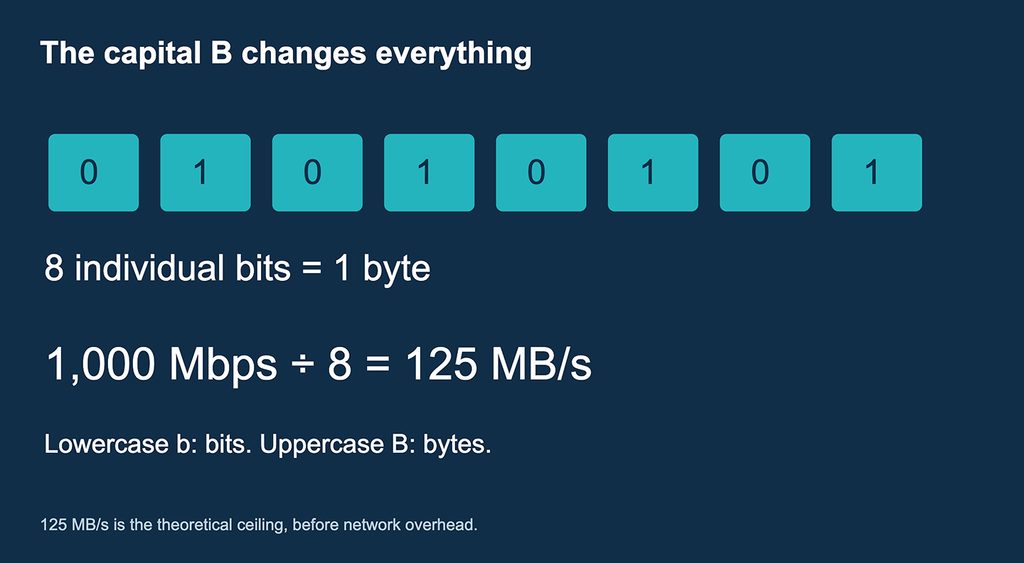
Internet providers normally advertise Mbps or Gbps, the standard network units. The number is eight times larger than the equivalent MB/s number, which can make a plan look dramatically faster to someone reading both as megabytes. This is confusing, but use of an industry-standard unit alone does not establish deliberate deception. A gigabit connection means 1,000 megabits per second, not 1,000 megabytes per second. Actual file transfers are lower because of overhead and bottlenecks. Check the broadband label for typical download speed, upload speed, latency and data allowances. A hypothetical 1,000 Mbps download / 20 Mbps upload plan can download quickly while cloud backup remains limited to 2.5 MB/s before overhead.
- Network advertising uses bits per second
- File transfers often display bytes per second
- Check upload speed separately
Storage speed: useful planning ranges
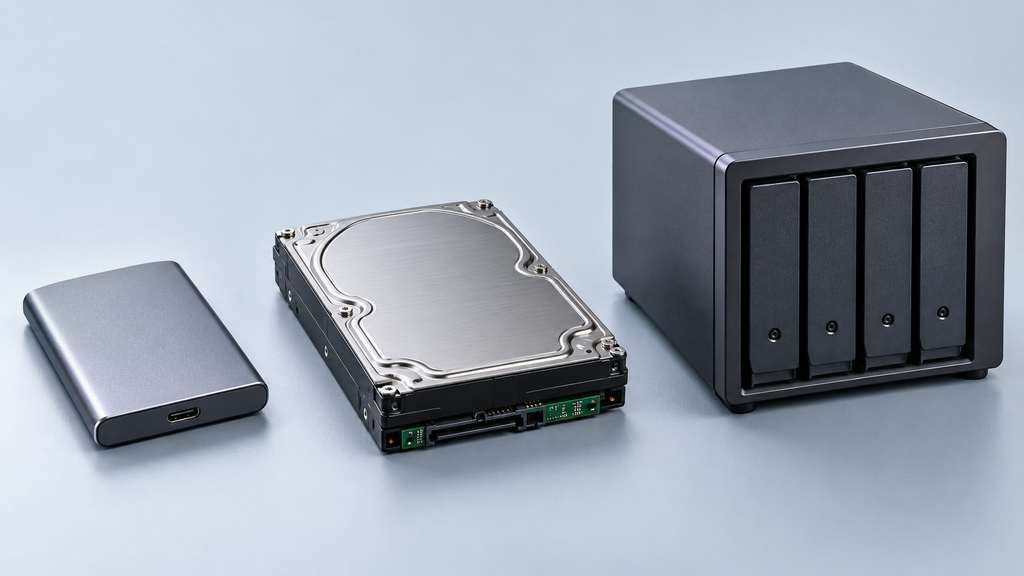
These are approximate large-file planning ranges, not guarantees or minimums. A modern enterprise HDD may reach roughly 150–280 MB/s depending on model and disk position; small scattered files can be far slower. Seagate rates the Exos X24 at up to 285 MB/s on outer tracks. A SATA SSD commonly reaches 450–550 MB/s for large sequential transfers. Internal NVMe SSDs can reach roughly 2,000–7,000+ MB/s depending on PCIe generation, lanes and model; some newer products exceed that range. Sustained writes can drop sharply after cache exhaustion or thermal throttling. Those headline rates do not describe Lightroom responsiveness by themselves: latency and random I/O matter too. A 6 Gb/s SATA interface does not turn a mechanical disk into a 600 MB/s drive.
These are approximate large-file planning ranges, not guarantees or minimums. A modern enterprise HDD may reach roughly 150–280 MB/s depending on model and disk position; small scattered files can be far slower. Seagate rates the Exos X24 at up to 285 MB/s on outer tracks. A SATA SSD commonly reaches 450–550 MB/s for large sequential transfers. Internal NVMe SSDs can reach roughly 2,000–7,000+ MB/s depending on PCIe generation, lanes and model; some newer products exceed that range. Sustained writes can drop sharply after cache exhaustion or thermal throttling. Those headline rates do not describe Lightroom responsiveness by themselves: latency and random I/O matter too. A 6 Gb/s SATA interface does not turn a mechanical disk into a 600 MB/s drive.
- HDD: about 150–280 MB/s sequential
- SATA SSD: about 450–550 MB/s
- Internal NVMe: often 2,000–7,000+ MB/s
USB-C does not specify speed
These illustrative file-transfer ranges assume a sufficiently fast SSD and compatible host, cable and enclosure. USB 5 Gb/s has a raw ceiling of 625 MB/s, USB 10 Gb/s has 1,250 MB/s, and USB 20 Gb/s has 2,500 MB/s; actual payload rates are lower, with fast 20 Gb/s setups often around 1,500–2,000 MB/s. Thunderbolt 3/4 offers 40 Gb/s link bandwidth, but PCIe tunneling, implementation limits and shared display traffic prevent assuming 5,000 MB/s file transfers. Many compatible single-NVMe setups deliver around 2,000–3,000 MB/s. USB-C describes the plug, not the protocol. Some USB-C ports or cables support only USB 2.0 at 480 Mb/s, often roughly 30–40 MB/s for files. Many Macs do not support USB 3.2 Gen 2×2 at 20 Gb/s; confirm the exact model and enclosure negotiation.
- 5 Gb/s USB: roughly 350–450 MB/s
- 10 Gb/s USB: roughly 700–1,050 MB/s
- 40 Gb/s Thunderbolt: often 2,000–3,000 MB/s
1-gig, 2.5-gig and 10-gig Ethernet
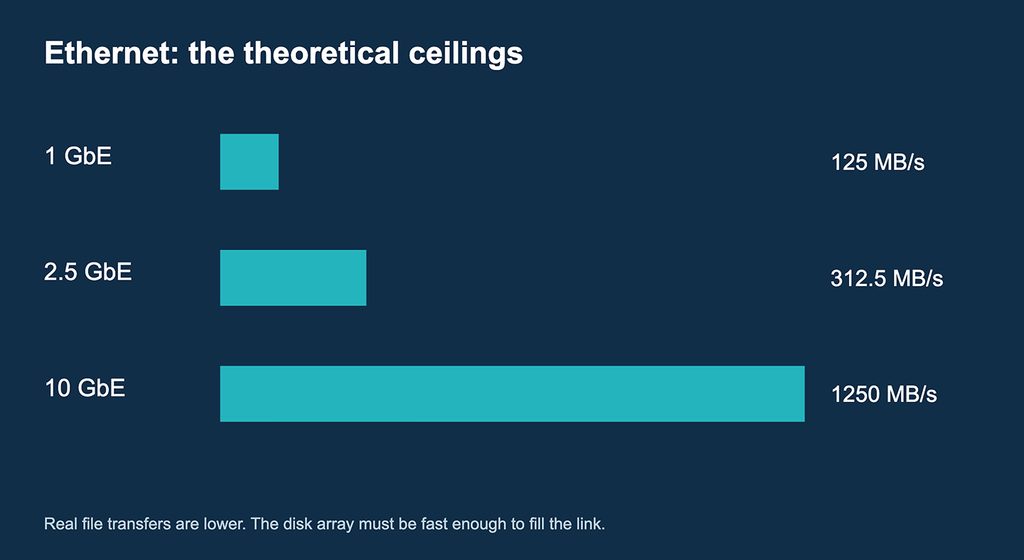
Gig is shorthand for gigabit here. Real-world ranges describe healthy wired large-file transfers with storage fast enough to keep up. A single HDD may already exceed what 1 GbE can carry. A 10 GbE link needs a compatible NAS port, switch or direct link, client adapter and suitable cabling; a slow component limits that path. Cat6A supports 10GBASE-T up to 100 meters under the standard, while shorter Cat6 installations depend on conditions. SSDs or a sufficiently fast disk array may be required to fill 10 GbE. A 10-gig local network does not upgrade the internet connection. Multiple 1-gig ports generally improve aggregate multi-client capacity with link aggregation, not a single ordinary transfer; special configurations such as SMB Multichannel have separate requirements.
- 1 GbE: 125 MB/s raw; often 100–115 MB/s
- 2.5 GbE: 312.5 MB/s raw; often 250–290 MB/s
- 10 GbE: 1,250 MB/s raw; often 800–1,100 MB/s
The slowest stage sets the pace
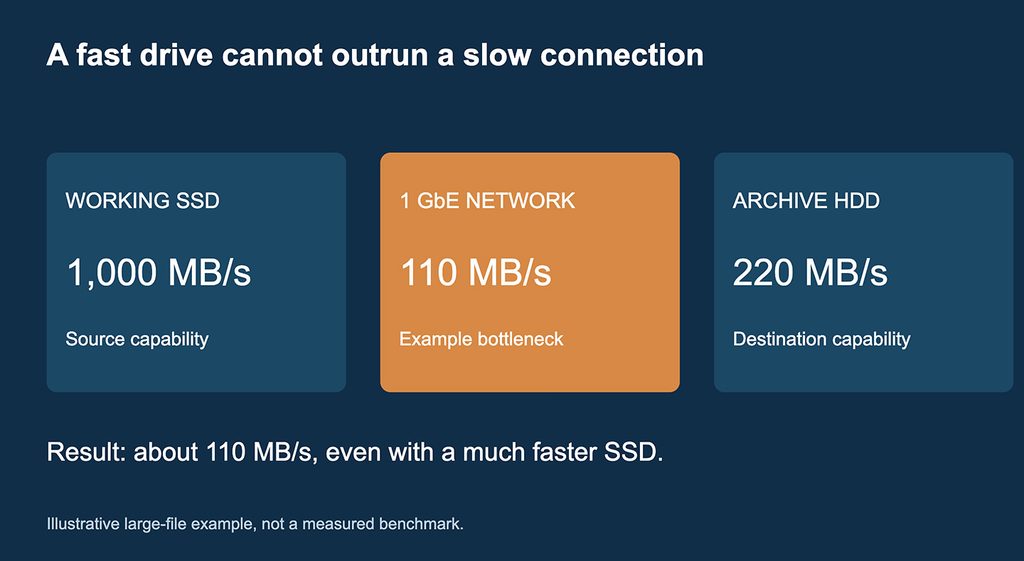
In this illustrative copy, an SSD could read at 1,000 MB/s and the target HDD could write at 220 MB/s, but a 1 GbE network carries only about 110 MB/s of file data. The copy therefore tops out around 110 MB/s before other limits. Replacing that link with 10 GbE shifts the bottleneck toward the HDD at about 220 MB/s. Replacing the HDD with faster storage could expose a new limit in the NAS CPU, protocol, client adapter or source disk. Performance always belongs to the complete path. A cache may make a short benchmark look impressive without improving a sustained multi-terabyte archive copy.
- Fast SSD: 1,000 MB/s potential
- 1 GbE path: about 110 MB/s in this example
- Archive HDD: 220 MB/s potential
RAID performance depends on workload
RAID 0 can approach the combined throughput of its disks for suitable sequential workloads, until the enclosure or connection becomes the bottleneck. RAID 1 usually writes near a single member’s rate; some implementations distribute reads. RAID 5 and RAID 6 can provide high sequential reads and full-stripe writes, but small random writes incur parity work. RAID 10 often offers strong mixed I/O and avoids parity calculations, at the cost of half the raw capacity. No RAID level has one universal MB/s value. As a simple model, four drives each capable of 200 MB/s suggest an 800 MB/s raw aggregate read ceiling, not a promised file-copy speed. Rebuilds and scrubs compete with normal work. Measure the actual array with a representative file set.
- RAID 0 can improve sequential throughput
- RAID 1 writes roughly at one member’s pace
- Parity and rebuild work can slow writes
NAS benefits beyond a shared archive
Depending on the model and software, a NAS can receive scheduled computer backups, including Time Machine on supported systems, and automatically upload phone photographs. Photo applications may offer albums, search, face recognition and sharing links. Individual user permissions help separate personal, client and business files. Snapshots can recover earlier states quickly, and scheduled replication can send copies to another NAS or cloud destination. Other uses include media streaming, surveillance recording, containers and small business services, subject to CPU, RAM, licensing and model support. Shared storage does not make a Lightroom Classic catalog multi-user. Indexing, AI recognition, video transcoding and surveillance compete for processor and disk resources. Remote access is limited by the NAS location’s upload speed and the remote client’s download speed.
- Automatic phone-photo and computer backups
- Private sharing, photo search and permissions
- Snapshots, media serving and remote access
Cloud speed and the upload bottleneck
Cloud storage, cloud backup, remote NAS access and cloud NAS cache misses all depend on the network path. There is no universal cloud-drive speed. Uploads depend on local upload bandwidth, provider limits, latency, encryption, concurrency and file sizes. At theoretical wire rates, 100 GB takes about 11.1 hours at 20 Mbps or 2.22 hours at 100 Mbps; 1 TB takes about 4.63 days or 22.2 hours respectively. These are lower-bound estimates with decimal units and no overhead. A cloud NAS may serve cached files at local network speed, while uncached files wait on the internet. Many small files can feel slow because of latency even with a fast connection. Backblaze has no single guaranteed MB/s rate for every account or computer.
- 20 Mbps upload: at most 2.5 MB/s
- 100 Mbps upload: at most 12.5 MB/s
- 1 Gbps upload: at most 125 MB/s
Fast SSDs for active editing
Speed and limitation: Typical sequential planning ranges: SATA 450–550 MB/s; internal NVMe roughly 2,000–7,000+ MB/s. External performance depends on the enclosure and negotiated connection.
SSDs have no moving heads and handle small random reads very well. That makes them useful for an operating system, Lightroom Classic catalog and previews, Photoshop scratch space, and active projects. NVMe SSDs can offer higher throughput than SATA SSDs, but the computer port, enclosure, cable, cooling, and source drive set the real speed. A fast SSD behind a slow connection remains slow. Sustained writes may drop after a cache fills or the drive heats up. Keep working headroom rather than filling a drive to its limit. SSDs can fail abruptly and still need backups. An unplugged SSD is not a maintenance-free permanent archive.
Enterprise hard drives for capacity
Speed and limitation: Large sequential files: roughly 150–280 MB/s for many modern high-capacity HDDs. Random access is far slower. A 6 Gb/s interface is not the platter speed.
Mechanical hard drives remain useful for large photo and video collections because they offer high capacity at lower cost per terabyte than many SSDs. Enterprise drives are designed for demanding workloads and may offer vibration tolerance, workload ratings, or longer warranties. They can also be noisy, warm, and power hungry. A 3.5-inch drive normally needs external power and suitable cooling. Check the exact model: SATA and SAS are different interfaces, and an ordinary SATA USB enclosure does not support SAS. Confirm sector-format and capacity support, warranty eligibility, and whether a discounted drive is new, recertified, or used. Prefer compatible CMR models for conventional RAID workloads. Device-managed SMR can suffer during sustained writes and rebuilds. An enterprise drive is still only one copy.
Single drives and direct-attached storage
Speed and limitation: DAS has no single speed. Expect the slowest of the disk, array, enclosure, cable and computer port to set the limit.
Direct-attached storage, or DAS, attaches to your computer instead of your network. It can contain one disk or several. A single enterprise drive in a powered enclosure is straightforward and easy to rotate off-site. A multi-bay unit may expose each disk independently or combine disks into a RAID volume. Check its actual operating mode before buying. JBOD terminology varies: it can mean separate disks or a concatenated volume. A concatenated volume is not redundant. RAID configuration can erase disks, so copy existing data elsewhere before creating or changing an array. Record drive identities and enclosure settings.
How RAID works
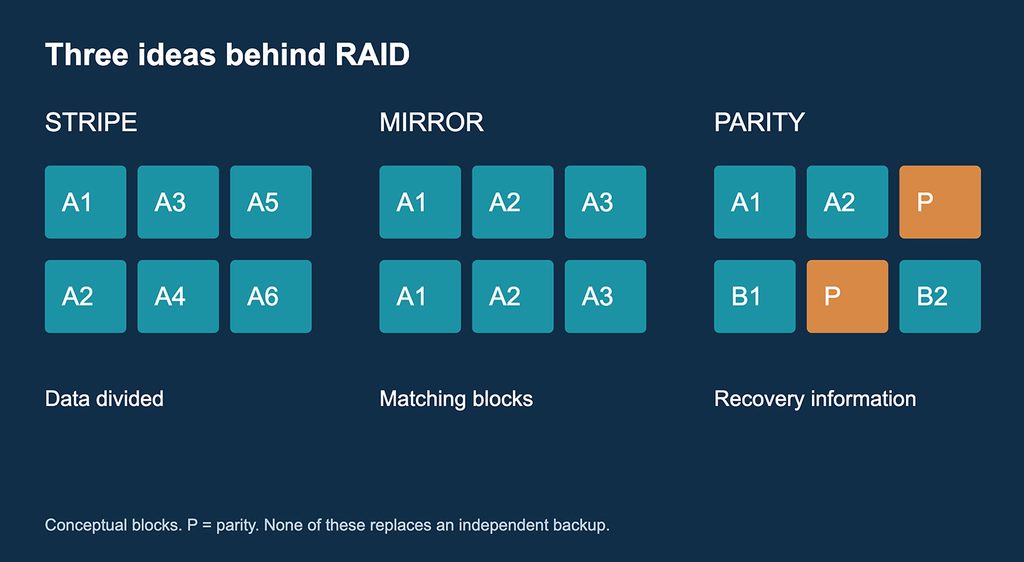
RAID combines disks into a storage system. Striping distributes data to improve throughput or combine capacity. Mirroring stores matching copies. Parity stores calculated recovery information that allows certain missing data to be reconstructed. RAID improves availability when its failure tolerance covers the fault. It does not preserve an independent historical copy: deletion, malware, or corruption can affect the whole volume. A RAID containing your only archive remains one logical copy. Hardware RAID relies on an enclosure or controller. Software RAID relies on the operating system or storage platform. Recovery may depend on compatible software or replacement hardware, so document the configuration.
RAID 0 and RAID 1
RAID 0 needs at least two drives and stripes data without redundancy. Failure of one member can destroy the volume. It is appropriate only when loss is acceptable and source files exist elsewhere, such as replaceable scratch data. A common two-drive RAID 1 mirrors one disk onto the other. Two 12 TB drives provide roughly 12 TB before formatting and overhead, with tolerance for one member failure. The mirror can keep working while a disk is replaced, but it also mirrors a deletion. A separate backup is still required.
RAID 5, RAID 6 and RAID 10
RAID 5 needs at least three disks and reserves the equivalent of one disk for distributed parity. RAID 6 needs at least four and reserves two disks worth for parity. RAID 10 stripes across mirrored pairs, typically using an even number of disks with a minimum of four and half the raw capacity. It survives one failed disk in each pair, but losing both disks of a pair can destroy the array. These formulas assume equal-size disks; traditional arrays generally use the smallest member size. Filesystem overhead and TB versus TiB reporting further reduce the displayed space. Hybrid RAID and ZFS RAIDZ have their own expansion and recovery rules. For a large HDD archive, dual parity deserves consideration because rebuilds expose the array to additional failures.
RAID | Minimum disks | Usable capacity | Failure tolerance |
0 | 2 | N × S | None |
1 (two disks) | 2 | S | One disk |
5 | 3 | (N − 1) × S | One disk |
6 | 4 | (N − 2) × S | Any two disks |
10 | 4, even count | N × S ÷ 2 | One per mirror pair |
N = number of disks; S = size of the smallest disk. Capacity before formatting and overhead.
Rebuilds, monitoring and maintenance
Speed and limitation: A 12 TB rebuild at a hypothetical sustained 100 MB/s already takes about 33 hours before additional overhead. Real rebuild rates vary and can slow normal work.
A rebuild reads surviving disks and reconstructs data onto a replacement. Time depends on capacity, workload, drive health, and the storage platform. The array has reduced protection while degraded. A hot spare is an idle replacement ready to join a rebuild; it is not additional usable capacity or a separate backup. Identify the failed member carefully before removal. Follow the manufacturer procedure and verify backups before risky maintenance. SMART monitoring may reveal problems but cannot predict every failure. Enable alerts and supported data scrubs. Checksumming filesystems can detect corruption and, with appropriate redundancy, repair some damage. Traditional RAID alone does not guarantee end-to-end integrity. A UPS supports orderly shutdown during a power failure.
NAS: storage on your Network
Speed and limitation: On a healthy 1 GbE path, roughly 100–115 MB/s may be achievable with large files. Faster disks alone cannot exceed that network limit.
Network-attached storage, or NAS, connects to a router or switch and serves files to computers over the network. It usually includes an operating system, user accounts, storage management, and backup tools. A NAS may use RAID, but NAS and RAID are not synonyms. NAS is useful for a shared studio archive and scheduled backups without leaving a workstation running. Tradeoffs include hardware cost, configuration, power consumption, software maintenance, and network bottlenecks. Use individual accounts, limited permissions, updates, multifactor authentication where available, and secure remote access. Avoid exposing file-sharing ports directly to the internet. Local snapshots help undo changes but remain vulnerable to loss of the NAS unless replicated independently.
Network speed and photo editing
Network rates use bits; file-copy rates commonly use bytes. Divide by eight for the theoretical ceiling before protocol overhead. Actual transfers are slower and depend on disks, small-file overhead, the NAS processor, switches, and client adapters. Every component in the path must support the intended link speed. Wi-Fi adds variability. A fast SSD can greatly outperform a basic network link, which is why keeping active work local and archiving to a NAS can be comfortable. Lightroom Classic photo originals can live on a NAS, but keep the active catalog on a supported local drive. A NAS SSD cache does not automatically make every large sequential transfer faster.
Cloud storage, backup and cloud NAS
Cloud storage is a broad term. Consumer services commonly offer folders, sharing, and synchronization. Object storage, such as Backblaze B2, stores objects in buckets and normally uses backup software or another application for access. Cloud backup software selects data, uploads changes, and manages recovery history. Cloud NAS is a less standardized marketing term: it may describe a hosted file server, cloud file service, or local gateway that caches files while storing data remotely. Ask where the authoritative data lives, what works offline, how permissions work, and whether deletions synchronize. A NAS with remote access is still a device in your building. Remote access alone does not create an off-site copy.
Off-site backup and independent recovery
Speed and limitation: An off-site disk restores at its local connection and disk speed. Cloud restore depends on download bandwidth, provider performance and the destination drive.
A fire, flood, burglary, or electrical event can affect the whole room. An off-site backup gives you a recovery path after the local equipment is gone. Options include encrypted disks rotated to a different building, a second NAS at another location, or cloud backup. Keep rotation schedules and records so an off-site disk is not silently months out of date. A second NAS needs protected replication and version history because immediate replication can spread mistakes. An offline drive resists online attacks while disconnected. Cloud retention locks can add protection, but they must be configured and tested. Keep encryption keys and recovery codes somewhere accessible after losing the computer.
Backblaze in this workflow
Speed and limitation: At 20 Mbps upload, no backup program can sustain more than 2.5 MB/s of payload before overhead. Initial backup completion matters more than the installed status.
I use Backblaze alongside my local storage. Backblaze Computer Backup supports eligible directly connected drives, but excludes network-mounted NAS volumes. A compatible local RAID volume may qualify when it meets the supported-drive requirements; verify selection and restore a test file. NAS backup can instead use compatible backup software with Backblaze B2, which is a separate object-storage product with separate billing and configuration. Computer Backup is file recovery, not a complete bootable image of the operating system. Keep a local computer backup too. Check the account dashboard for selected drives, exclusions, pending uploads, and the last successful backup. Installing an application does not prove the archive is protected.
Disconnected drives and retention
Backblaze documentation currently describes default 30-day history, a no-additional-cost one-year option that must be selected, and a paid Forever option with additional retention charges. For disconnected external drives, the current external-drive guidance ties retention to that setting: 30 days or up to one year, respectively. Keep drives connected frequently so new files can upload. Older disconnected data may require selecting an earlier restore date. Extending history cannot recover versions already purged. Do not upload an archive, delete the local files, and assume Computer Backup becomes permanent cloud storage. Verify your actual settings and current service terms. Never assume this article confirms the configuration of your account.
Upload time and disaster recovery
These examples use decimal terabytes and a continuously saturated connection with no overhead. Actual uploads take longer because of competing traffic, service limits, interruptions, and file processing. Upload bandwidth is often much lower than download bandwidth. The initial cloud backup may take weeks for a large archive. Until it completes and is verified, use another off-site copy. Plan downloads too: after a disaster you need a destination drive, working hardware, credentials, and time. Some services offer shipped restore media; check current eligibility, capacity, fees, and delivery time. Local backup restores are useful because retrieving many terabytes over the internet can delay a deadline.
Lightroom and Photoshop files to protect
A Lightroom Classic catalog backup does not back up the original photographs. Protect the catalog and associated .lrcat-data files when present, as well as originals and XMP sidecars. XMP does not reproduce every catalog function, so it cannot replace the catalog. Previews can generally be rebuilt, but losing them still costs time. Keep layered Photoshop masters if you want editable work, plus final deliverables you cannot easily recreate. Include custom actions, presets, profiles, releases, licensing records, invoices, and video project media. Close applications or use an application-consistent backup method for active databases. Store catalog backups on another device and include them in off-site protection.
A verified ingest and archive workflow
A verified ingest and archive workflow
Import a new job into a consistent folder structure, such as 2026/2026-10-29_Client_Project, with subfolders for originals, working files, and deliverables. Keep unique filenames. Create a second copy on a separate physical device, ideally using software that verifies the transfer with checksums. Open representative images too. Avoid formatting memory cards until verified copies exist, and prioritize off-site protection for irreplaceable shoots. During editing, automate versioned backups. At completion, copy the job to the archive and verify it. Back up that archive independently and confirm off-site coverage before deleting the working SSD copy. Move Lightroom-managed folders through Lightroom, or deliberately relink them afterward.
Long-term archive care
Speed and limitation: Full verification reads every byte. Scanning 12 TB at a hypothetical sustained 200 MB/s takes about 16.7 hours before overhead; verification is real work, not an instant check.
A checksum is a digital fingerprint. A verified copy compares fingerprints to confirm identical bytes. Later comparisons can reveal corruption, but a checksum cannot repair a file by itself. Retain known-good independent copies. Keep an inventory of archive disks, serial numbers, contents, backup locations, and last verification dates. Store offline drives in protective antistatic packaging in a stable, dry environment and avoid shocks. Periodically connect them, verify files, and refresh off-site copies. No fixed replacement interval guarantees safety. Migrate when reliability, compatibility, capacity, or support becomes a concern. Retain original RAW files and widely supported rendered masters when appropriate. A drive that spins up is not proof every file is readable.
Capacity, cost and security
If you capture 30,000 RAW files at 50 MB each, that is about 1.5 TB before layered edits, video, exports, or backups. Three full copies imply roughly 4.5 TB of file data. RAID parity adds physical capacity overhead separately. Budget for enclosures, replacement disks, electricity, networking, and restore destinations. Cloud costs may include storage, requests, downloads, minimum retention, or retrieval delays. Compare the full workflow, not just the advertised monthly price. Encrypt portable and off-site drives and use strong unique passwords with multifactor authentication. Restrict ordinary accounts from deleting backup history where possible. Keep recovery information outside the protected computer.
A monthly recovery check
Every week, review backup failures and pending uploads. Monthly, restore selected recent and older files into a separate test folder and open them in the intended applications. Test an earlier version and a deleted file as well as current files. Periodically rehearse a larger recovery, including account access without your usual computer. Decide how much recent work you can afford to lose and how long you can afford to wait: these are recovery point and recovery time objectives. A daily backup can lose up to a day of new work. A cloud-only restore might miss a deadline even when every byte survives. The backup is useful only when you can get the photographs back.
A storage plan you can maintain
For a single photographer, a working SSD, high-capacity archive disk, independent backup disk, and cloud backup can provide a manageable foundation. RAID becomes useful when continuing to work through a disk failure matters, or when a larger combined volume makes the archive easier to manage. A NAS becomes useful when several computers need shared storage or you want server-managed backup tasks. Neither upgrade removes the need for backups. My SSD and enterprise-drive approach balances editing speed and archive capacity. The essential habit is to verify that each stage has independent local and off-site protection, especially when files move between drives.
Speed sources and assumptions
Ranges are illustrative planning estimates for large sequential transfers, not guarantees. Small files, mixed reads/writes, heat, cache exhaustion and contention can reduce performance substantially.
- Seagate: interface rates and units
- Intel: Thunderbolt and USB-C
- Synology: NAS applications
- Kingston: SSD interfaces
Official references and further reading
Service details checked October 29, 2026. Confirm current settings, compatibility, retention and charges before making changes.
- Backblaze supported backup data
- Backblaze external drives
- Backblaze version history
- Synology RAID types
- Adobe catalog backups
- Adobe catalog integrity
Before your next shoot
Confirm free space, check your last successful backup, and restore one file. That small routine is more valuable than assuming an expensive storage system has everything covered.